

Getting Started with Facebook
Walk through creating an account, finding friends, and understanding what you're actually seeing in your feed. We'll explain the basics without the confusion.

Author
Studionorthlight Editorial Team
Written by the studionorthlight editorial team, focused on practical, easy-to-follow guidance for social media learners over forty.
Facebook can feel overwhelming at first. There's the news feed, notifications, messages, and all these settings you don't understand. But here's the thing — the basics are actually pretty straightforward once you see how it all fits together. We're going to walk you through it step by step.
Creating Your Account
Starting with Facebook means going to facebook.com and hitting the sign-up button. You'll need a few things: a real email address or phone number, your full name, birthday, and you'll create a password. Make it something strong — at least 8 characters with numbers and letters mixed in.
They'll send a confirmation email. Open it, click the link, and you're in. Don't worry if the next screen shows you options to add a profile picture or find friends — you can skip those for now and come back to them later. The important part is you're officially on Facebook.
- Use an email you check regularly
- Your birthday is required (for age verification)
- You can choose privacy settings after setup


Understanding Your Profile
Your profile is where people see information about you. It's got your name, profile picture, cover photo, and a bio section. You don't have to fill everything in right away. Start with a clear photo of yourself — people are more likely to accept friend requests when they can see who you are.
The bio section is optional, but it's nice to add a line or two. Something like "Retired teacher, love gardening" or "Photography enthusiast from Vilnius" helps people remember you and gives them something to talk about. You'll find all this in the "About" section of your profile. Click edit, add what you want, and save.
Pro tip: You can change your profile picture anytime. Many people update it seasonally or when they have a good new photo. Don't stress about getting it perfect on day one.
Finding and Adding Friends
This is where Facebook becomes actually useful. Finding friends means searching for people you know. You can type their name in the search bar at the top of the page. When you find someone, click "Add Friend" and they'll get a notification. They can accept or decline. It's that simple.
Don't feel like you need 500 friends. Start with people you actually know — family members, former colleagues, people from your neighborhood or hobby groups. Facebook will also suggest people based on mutual friends. You can ignore those suggestions if you want. Quality matters more than quantity. When you've got 50 real connections, you'll see a much better feed than if you had 500 random people.
If someone sends you a friend request and you don't recognize them, it's totally fine to decline. You're in control here. You can also limit what people see on your profile through privacy settings, which we'll get to in a moment.


Reading Your News Feed
Your news feed is what you see when you log in. It's a mix of posts from your friends, pages you follow, and occasionally ads. Facebook decides what to show you based on what you interact with — the posts you like, comment on, or share get prioritized. So if you're liking a lot of gardening posts, you'll see more gardening content.
You'll notice each post has options below it: Like, Comment, Share. Like is a quick way to say you saw something and enjoyed it. Comment means you type a response. Share means you're sending it to your own feed so your friends see it too. Don't worry about being perfect with your interactions. There's no rule about what you should or shouldn't like. It's your feed.
If you see something that bothers you — maybe it's spam or something from someone you don't want updates from — you can scroll past it or click the three dots on that post and choose to hide it or unfollow that person. This gives you control over what fills your screen.
Privacy Settings That Matter
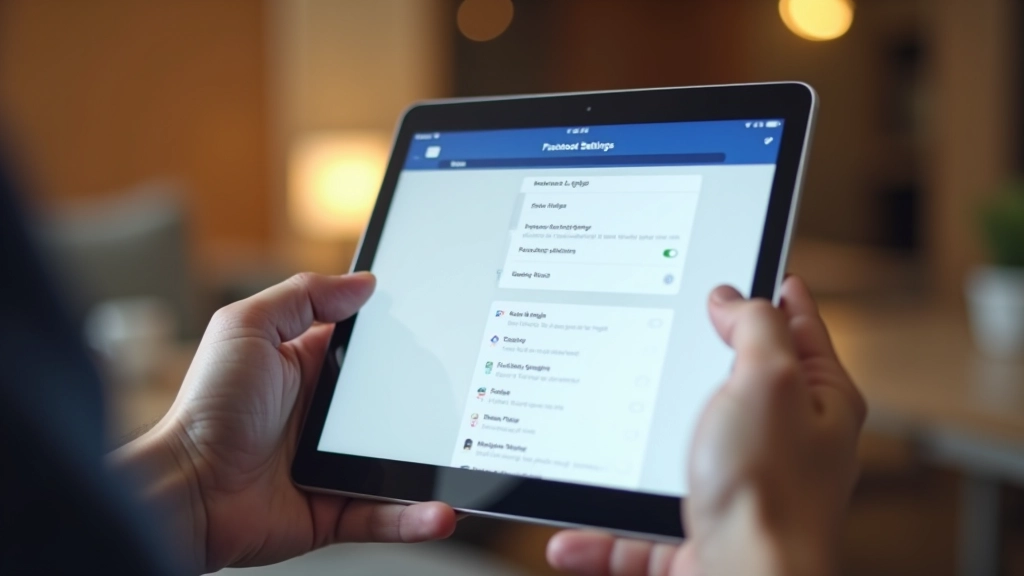
Facebook has privacy controls, and you should at least know where they are. Click the menu button (three horizontal lines in the top right corner) and look for "Settings and Privacy" then "Settings." You'll see options for who can see your profile, who can contact you, and who can comment on your posts.
Here's what we'd suggest: set your profile to "Friends Only" so strangers can't see your information. You can choose to accept friend requests manually instead of automatically accepting them. For messages, you might want to allow messages only from friends so you're not getting random messages from people you don't know.
Important: Don't feel rushed to set everything perfectly. You can adjust these settings anytime. The defaults aren't terrible, but having some control makes the experience better and keeps you safer online.
Getting Started Is Just the Beginning
You've now got the fundamentals down. You know how to create an account, set up your profile, find friends, understand your feed, and adjust your privacy. That's really all you need to get going. The rest — messaging, joining groups, following pages, watching videos — you can explore as you get more comfortable.
Remember, there's no rush. Spend a week just scrolling through your feed and liking things. Get a feel for how it works. Add a few more friends as you think of them. Adjust a setting if something bothers you. Facebook works best when you use it at your own pace, not because you feel like you have to keep up with everyone else.
The biggest thing to remember? It's your space. You control what you see, who you connect with, and how much you share. Don't let anyone pressure you into posting things you're not comfortable with or accepting friend requests from people you don't want to hear from. It's meant to help you stay connected with people who matter to you.
Note: Individual learning outcomes vary from person to person. Facebook's interface and features may change over time. For the most current information about specific features or settings, refer to Facebook's official help center or support pages.